I've written about a bunch of screen capture tools over the years. Webpage Screenshot is another good one to add to the list. Webpage Screenshot is a Chrome extension that you can use to capture all or part of webpage. You can draw and type on screenshots you make with Webpage Screenshot. One feature of Webpage Screenshot that is quite helpful is the option to capture the entire content of webpage even if it doesn't appear in your current view of the webapge. See it in action in the short demo video that I made and embedded below.
Applications for Education
Whenever I'm introducing a new web-based service to students or colleagues, I find that having annotated screenshots available to them in either digital or printed form is very helpful. Having annotated screenshots available can help you avoid answering the same question ten times and also allows people who are more comfortable to go ahead on their own. The annotated screenshots also provide a nice reference for students and colleagues when they're working on their own without immediate access to an instructor.
Showing posts with label chrome extension. Show all posts
Showing posts with label chrome extension. Show all posts
Wednesday, February 29, 2012

Thursday, February 16, 2012
Context Menu Search - Right-Click to Search in Chrome
Context Menu Search is a Google Chrome extension that allows you to highlight words on a webpage then right-click to search for those words on more than three dozen popular search engines and reference sites. When you have Context Menu Search installed, just highlight, right-click, then select the search engine that you want to use. To see Context Menu Search in action, watch the short Tekzilla video below.
Applications for Education
Context Menu Search could be a handy tool for students to use when they're reading online. When they come to a word or phrase with which they are not familiar, they can quickly search for the meaning by using Context Menu Search. Ambiently is a similar tool that I've reviewed before that works on multiple browsers.
Applications for Education
Context Menu Search could be a handy tool for students to use when they're reading online. When they come to a word or phrase with which they are not familiar, they can quickly search for the meaning by using Context Menu Search. Ambiently is a similar tool that I've reviewed before that works on multiple browsers.
Wednesday, February 8, 2012
Two Tools for Reading ePub Files in Your Browser

EPUBReader is a Firefox add-on that will allow you to read ePub documents within your browser. EPUBReader downloads ePub files and displays them directly in your browser. The video below offers a short demonstration.
Magic Scroll is a Chrome web app that you can use to read ePub files on your desktop or laptop even if you do not have an internet connection.
If you want to convert webpages into ePub documents, dotEPUB is a good Chrome web app for that. I previously wrote about dotEPUB in October. Here is a video overview of dotEPUB.
Applications for Education
Both of these browser add-ons could be good to have installed on your school's library computers or computer lab computers. If students are conducting research and encounter an ePub document, they will be able to access it without the need to send it to an ereader.
Monday, February 6, 2012
Three Browser Extensions Every Teacher Should Try
It is no secret that I am a Google fan boy which is why I use Chrome as my primary web browser. Chrome is my browser of choice in part because of the numerous useful browser extensions and add-ons that are available for it. In the video below I demonstrate my three favorite Chrome extensions that I think every teacher can benefit from using. These extensions are also available for Firefox and Safari.
Evernote
A Cleaner Internet
Bitly
Evernote
A Cleaner Internet
Bitly
Thursday, February 2, 2012
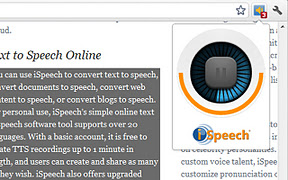
Select and Speak a Text to Speech Chrome Extension
Applications for Education
Just as with other text to speech apps Select and Speak could be helpful to students who have difficulty reading the content of webpages.
Tuesday, January 31, 2012
Announcify - A Great Text to Speech App

Applications for Education
As I mentioned in the video above, Announcify could be a great little tool for students that need audio support when they are reading online content. The enlargement of text and removal of sidebar content could also help students focus on what they are trying to read on a webpage.
Subscribe to:
Posts (Atom)