Context Menu Search is a Google Chrome extension that allows you to highlight words on a webpage then right-click to search for those words on more than three dozen popular search engines and reference sites. When you have Context Menu Search installed, just highlight, right-click, then select the search engine that you want to use. To see Context Menu Search in action, watch the short Tekzilla video below.
Applications for Education
Context Menu Search could be a handy tool for students to use when they're reading online. When they come to a word or phrase with which they are not familiar, they can quickly search for the meaning by using Context Menu Search. Ambiently is a similar tool that I've reviewed before that works on multiple browsers.
Showing posts with label chrome web app. Show all posts
Thursday, February 16, 2012
Wednesday, February 8, 2012
Two Tools for Reading ePub Files in Your Browser
ePub documents are everywhere now. But if you don't have an ereader, you might feel like you're missing out on something. Fortunately, there are some tools that you can use to read ePub documents on your laptop or desktop. Here are two tools that I have used to read ePub documents on my laptop.
EPUBReader is a Firefox add-on that will allow you to read ePub documents within your browser. EPUBReader downloads ePub files and displays them directly in your browser. The video below offers a short demonstration.
Magic Scroll is a Chrome web app that you can use to read ePub files on your desktop or laptop even if you do not have an internet connection.
If you want to convert webpages into ePub documents, dotEPUB is a good Chrome web app for that. I previously wrote about dotEPUB in October. Here is a video overview of dotEPUB.
Applications for Education
Both of these browser add-ons could be good to have installed on your school's library computers or computer lab computers. If students are conducting research and encounter an ePub document, they will be able to access it without the need to send it to an ereader.
EPUBReader is a Firefox add-on that will allow you to read ePub documents within your browser. EPUBReader downloads ePub files and displays them directly in your browser. The video below offers a short demonstration.
Magic Scroll is a Chrome web app that you can use to read ePub files on your desktop or laptop even if you do not have an internet connection.
If you want to convert webpages into ePub documents, dotEPUB is a good Chrome web app for that. I previously wrote about dotEPUB in October. Here is a video overview of dotEPUB.
Applications for Education
Both of these browser add-ons could be good to have installed on your school's library computers or computer lab computers. If students are conducting research and encounter an ePub document, they will be able to access it without the need to send it to an ereader.
Thursday, February 2, 2012
Select and Speak a Text to Speech Chrome Extension
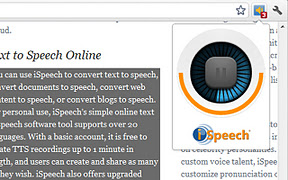
Earlier this week I shared Announcify with you. Announcify is a free text to speech service. Today, I discovered another good, free text to speech tool for the Chrome web browser. Select and Speak is a simple text to speech browser extension. Select and Speak installs with just one click and does not require a browser re-start. One Select and Speak is installed just highlight any text on a webpage, click the Select and Speak icon in your browser, and listen to the reading of the text.
Applications for Education
Just as with other text to speech apps Select and Speak could be helpful to students who have difficulty reading the content of webpages.
Applications for Education
Just as with other text to speech apps Select and Speak could be helpful to students who have difficulty reading the content of webpages.
Tuesday, January 31, 2012
Announcify - A Great Text to Speech App
Announcify is a free text to speech application that is available as a Chrome browser extension and as an Android app. With Announcify installed in your browser any time you're viewing a webpage you can simply click on the Announcify icon in your browser and have that page read to you. A bonus aspect of using Announcify is that in order to make a webpage easier to read it enlarges the text of the webpage and removes all sidebar content. In the video below I provide a short demonstration of Announcify.
Applications for Education
As I mentioned in the video above, Announcify could be a great little tool for students that need audio support when they are reading online content. The enlargement of text and removal of sidebar content could also help students focus on what they are trying to read on a webpage.
Applications for Education
As I mentioned in the video above, Announcify could be a great little tool for students that need audio support when they are reading online content. The enlargement of text and removal of sidebar content could also help students focus on what they are trying to read on a webpage.
Subscribe to:
Posts (Atom)
